How to use ComposeArchitect.com
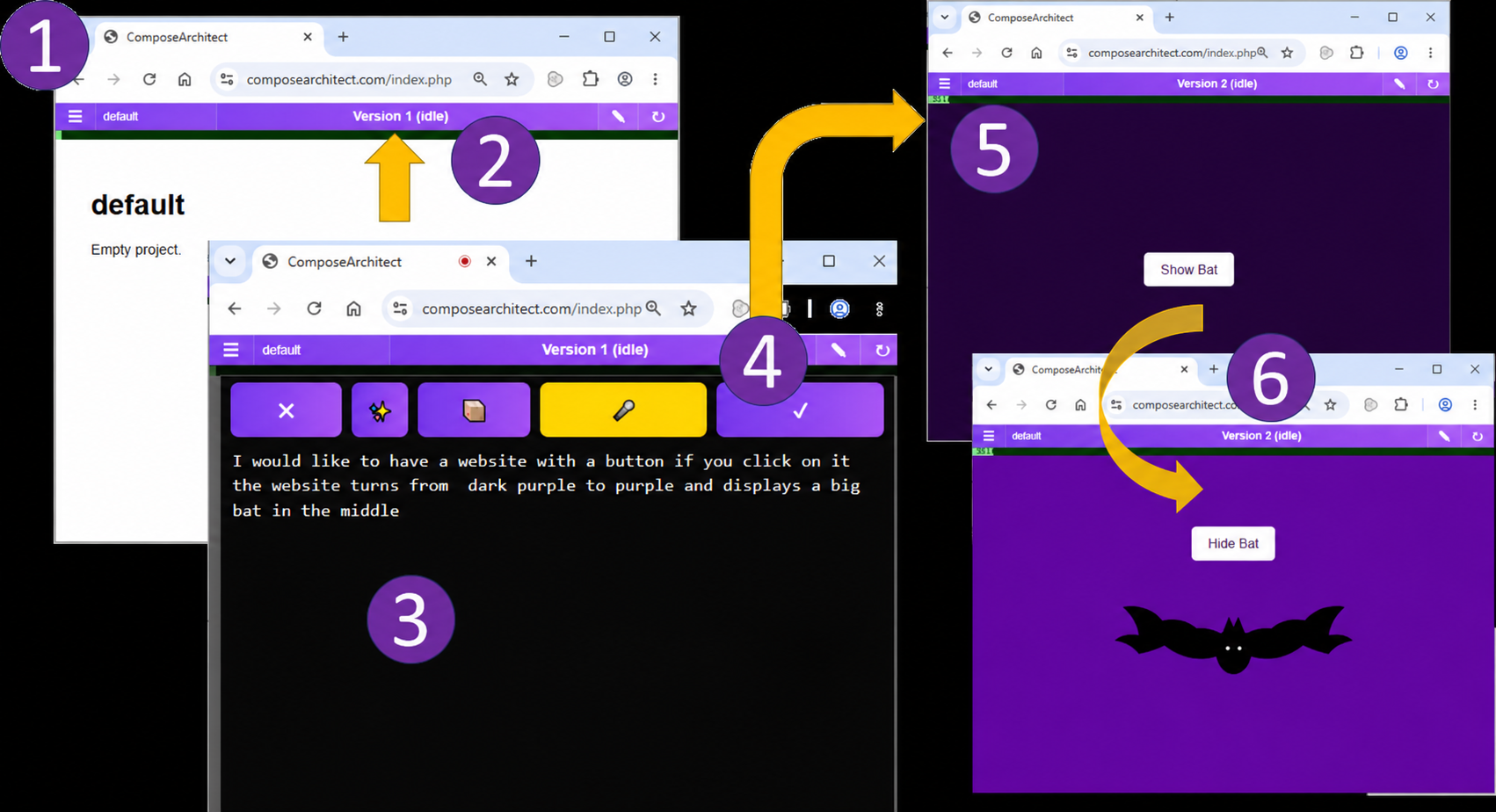
🦇 Example workflow
The iframe shows your current application. At first it may just say “Empty project”.
Click on the version part of the project bar to open the prompt editor.
Say or type what you want to build. For example:
The top bar turns yellow while processing. When processing is finished, a new version is created automatically.
The updated app appears in the iframe automatically. In the example, a button appears and toggles the bat.
Test if the specification was implemented as intended.
Describe the next change. ComposeArchitect keeps the current behavior unless you explicitly ask to change it.
🚀 Basic idea
ComposeArchitect.com supports architecture-first AI development: you describe the intended change, while the AI updates the running application as builder and integrator.
Instead of generating from a blank prompt, you evolve a working project step by step, with every successful change stored as a new version.
Architecture-first AI-assisted Versioned🧩 Projects
A project is one executable web application. It contains the current code, its version history, and the context used for further AI-driven refinement.
- Create a new application from scratch
- Fork existing projects for experimentation
- Restore earlier versions when needed
- Switch between projects using the project menu
🎙️ Speech / Prompt editor
The prompt editor is the main steering interface. You formulate the next architectural or functional change in natural language, either by typing or dictation.
When you apply the instruction, ComposeArchitect sends the current application state and your intent to the AI for integration.
📦 Templates
Templates are reusable executable examples. They act as concrete references for layout, behavior, interfaces or coding style.
By selecting templates, you guide the AI with proven building blocks instead of relying on natural-language prompts alone.
🕘 Versions
Every successful AI update creates a new version. You can restore older versions if a change does not work as expected.
- Version number is shown in the top bar
- Processing state is shown in yellow
- Older versions remain available
🔐 Account and safety
Accounts are protected by email and mobile verification during registration. Depending on the account type, limits may apply to projects, AI usage or code editing.
- Use a strong password
- Keep your API keys private